Initialize Appraisals
LightWork’s Initialize Appraisals section allows you to generate and open a list of Appraisals for a group of Employees, instead of having to open them one by one.
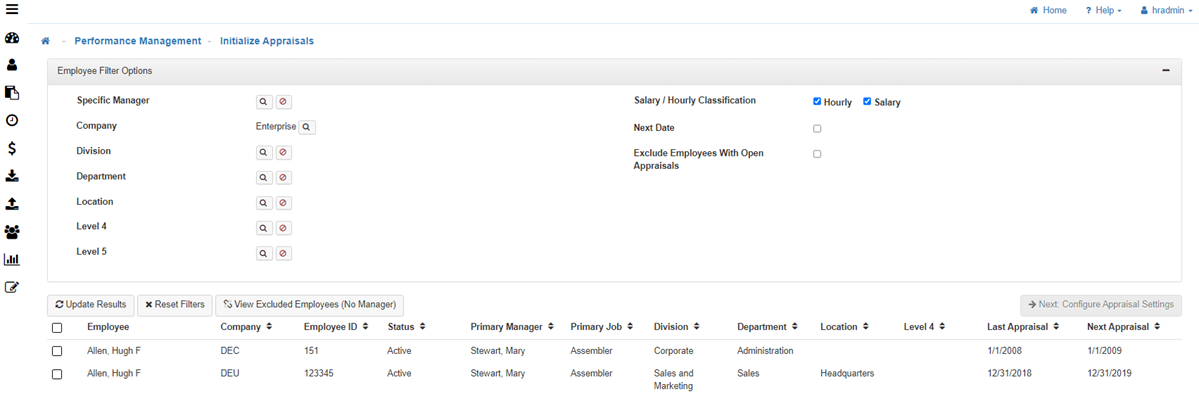
How to Initialize Appraisals
Note: You can do any combination by using the filter available.
-
Filter Options
Qualify the filter based on the following available options: -
Specific Manager
Select a Manager to filter through only their Direct Reports. -
Company
Select a Company to filter by that Company. -
Organization
Filter by the Organization Levels. -
Salary/Hourly Classification
Classification Filter by whether the Employee is Salary or Hourly. -
Next Performance Review Date
Filter based on the next performance review date. -
Exclude Employees with an Open Appraisal
Will exclude any Employee that has an open Appraisal. -
Update Results
Selecting 'Update Results' will populate a list of Employees who fit the filtered qualifications.
Note: If the list is not showing as expected, select 'Reset Filters' to clear the filtered selection and start again. -
Employees
Select the Employees you would like to initialize, from the list that generates, by using the check boxes next to their names.
Note: In the filter results ribbon next to 'Employee' there is a check box option that allows you to mass-select Employees. -
Configure Appraisal Settings
Click on Next: Configure Appraisal Settings, and complete the following fields: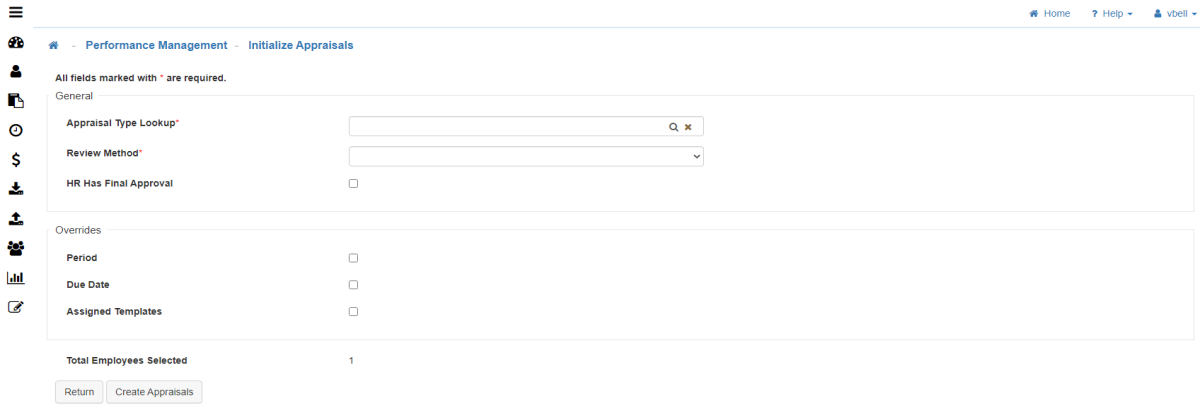
-
Appraisal Type
Select the Appraisal you wish to create. -
Review Method
Based upon the Appraisal Type selected, the system will default to the review method for that Appraisal Type. However, you can override if desired. -
HR Has Final Approval
Check if you want HR to be the Final Approval for the Appraisal. -
Override
-
Period Start & Period End
If Start and End Date overrides are selected here, those dates define the review period.
If no overrides are selected, the system calculates the review period automatically:The end date is set to the established Due Date.
The start date is calculated by subtracting the number of days configured in Appraisal Type Maintenance under Period Days from the Due Date.
This calculated range becomes the final review period displayed for the appraisal.
-
Due Date
When an Appraisal is initialized, the system determines the Due Date using the following order of precedence:Override Date – If a Due Date override is selected here during initialization, that date is used.
Employee’s Next Performance Review Date – If no override is selected, the system falls back to the employee’s Next Appraisal Date. This is an external field stored in the Employee's Profile in LIghtWork (as a brought-in value) and should either be mapped from your external system or maintained locally within LightWork.
Final Fallback – If no date exists in either location, the system sets the Due Date to 30 days from the creation date.
-
Assigned Templates
Allows you to assign specific Templates. In your setup, you may have already assigned the Templates based on the Appraisal Type or through the Template Cross Reference. This is only to override those assigned Templates.
-
-
Create Appraisals
To create the Appraisal(s) click on Create Appraisals. -
Confirm Creation
You will receive a notification indicating the number of Appraisals you created. Click on 'Okay' to confirm.